
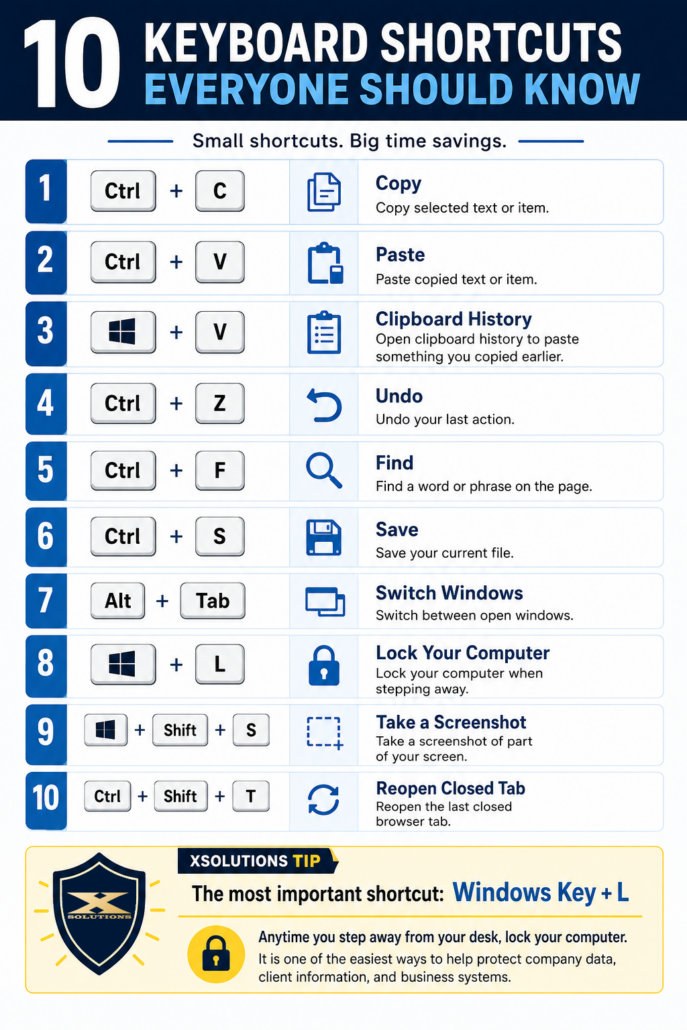
10 Keyboard Shortcuts Everyone Should Know
DOWNLOAD THE PRINTABLE KEYBOARD SHORTCUT GUIDE FOR YOUR TEAM HERE
Small shortcuts. Big time savings.
Most business owners do not lose hours because of one giant mistake.
They lose them in tiny pieces.
A few seconds searching through menus. A few clicks to copy and paste. A few minutes trying to find something on a page. A quick scramble to reopen a tab that disappeared right before you needed it.
None of that feels like much in the moment.
But across an entire team, across an entire workweek, it adds up.
That is why basic keyboard shortcuts are still worth teaching. They are simple, easy to remember, and genuinely useful for almost every employee, whether they work in legal, construction, distribution, accounting, operations, or administration.
Here are 10 keyboard shortcuts everyone should know.
1. Ctrl + C, Copy
This is the classic.
Use it to copy selected text, files, folders, images, or other items.
It is faster than right-clicking, faster than using the toolbar, and one of the easiest habits to build.
2. Ctrl + V, Paste
Copy gets paired with paste.
Once you have copied something, Ctrl + V drops it where you need it.
This is useful for emails, documents, spreadsheets, file names, web forms, and just about everything else you touch during the day.
3. Windows Key + V, Clipboard History
This one is underused.
Most people know how to copy and paste one thing at a time. Clipboard History lets you pull up things you copied earlier.
That means if you copied a phone number, then copied an email address, then copied a paragraph, you may still be able to go back and grab the earlier items instead of hunting them down again.
For people who live in email, spreadsheets, CRMs, proposals, or ticketing systems, this can save a lot of annoying backtracking.
4. Ctrl + Z, Undo
Mistakes happen.
You delete the wrong sentence. Move the wrong file. Type over something you meant to keep. Format a document in a way that looks awful.
Ctrl + Z is the panic button.
It undoes your last action and often saves you from having to rebuild something manually.
5. Ctrl + F, Find
This is one of the most useful shortcuts in business.
Use Ctrl + F to find a word or phrase on a webpage, in a document, in a PDF, or inside many applications.
Looking for a client name? A dollar amount? A policy section? A product code? A specific phrase in a long email chain?
Ctrl + F gets you there faster.
6. Ctrl + S, Save
Yes, a lot of programs autosave now.
No, that does not mean you should fully trust autosave every time.
Ctrl + S is a good habit, especially when working on important files, spreadsheets, proposals, or documents with a lot of changes.
It takes less than a second and can save you from a very frustrating situation.
7. Alt + Tab, Switch Windows
If you constantly jump between programs, Alt + Tab is your friend.
It lets you switch between open windows without reaching for the mouse.
That is useful when you are comparing two documents, moving between email and your browser, checking notes during a call, or working through multiple systems at once.
8. Windows Key + L, Lock Your Computer
This is the most important shortcut on the list.
Windows Key + L locks your computer instantly.
Anytime you step away from your desk, even for a minute, lock your screen.
This protects company data, client information, internal systems, email accounts, and anything else you have open.
It is one of the easiest security habits to teach, and it costs nothing.
9. Windows Key + Shift + S, Take a Screenshot
This opens the screenshot tool so you can capture part of your screen.
That is useful when you need to show an error message, document an issue, send instructions, or capture something for a ticket.
Instead of taking a picture of your monitor with your phone, use this shortcut.
Your IT team will thank you.
10. Ctrl + Shift + T, Reopen a Closed Tab
Everyone has done it.
You close the wrong browser tab, then immediately regret it.
Ctrl + Shift + T reopens the last closed tab.
It is simple, but it can save time when you are working in browser-based systems like Microsoft 365, QuickBooks Online, CRMs, vendor portals, project management tools, or cloud apps.
The Real Point
Keyboard shortcuts are not just “computer tricks.”
They are small habits that make people faster, smoother, and less frustrated during the workday.
The best part is that they do not require a new tool, a new license, or a big training program. Most employees can learn these in a few minutes and start using them right away.
Start with the basics.
Copy. Paste. Undo. Find. Save.
Then make Windows Key + L non-negotiable.
Because saving time is great, but protecting company data matters even more.
XSolutions Tip
The next time you walk away from your desk, use this shortcut:
Windows Key + L
Locking your computer is one of the easiest ways to protect company data, client information, and business systems.
No extra software. No complicated process. Just one simple habit that makes your workplace more secure.