

A Better Way To Select Multiple Files In Windows 11
Most users select multiple files within a folder by selecting the first file, then clicking the last file while holding the Shift Key down (if the files are next to each other). If the files are not in order, you can hold the Ctrl key and click each file individually.
But what happens if you accidentally click a file you didn’t intend to select? Do you have to start over? Not necessarily. Windows has an option that allows you to use checkboxes to select files, making it much easier to manage multiple selections.
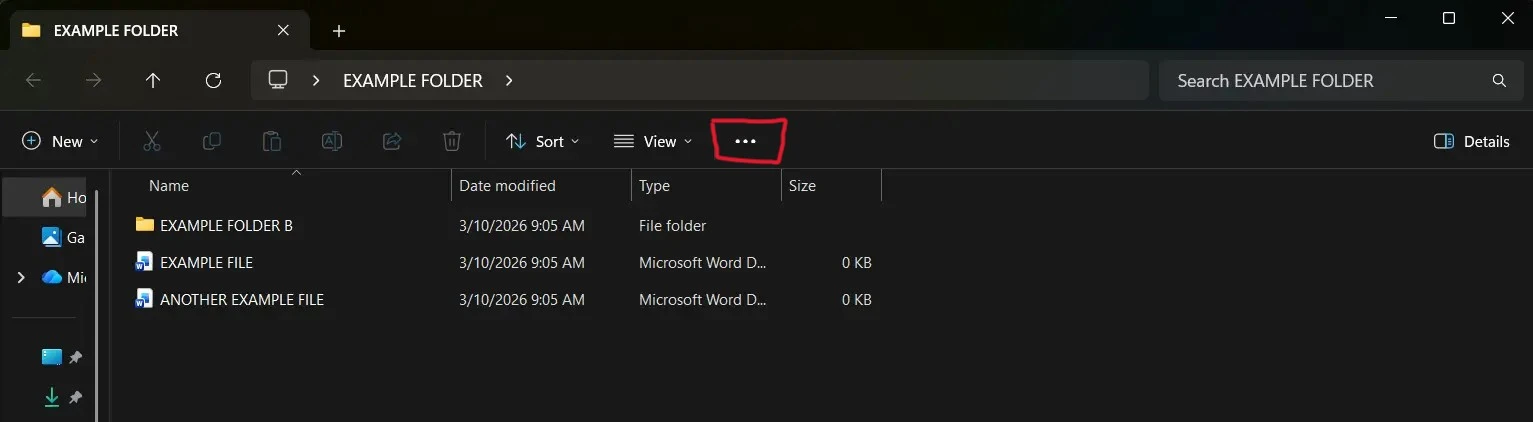
- Open a folder (any one, it doesn’t matter which one)
- In the Menu Bar, click The Three Dots
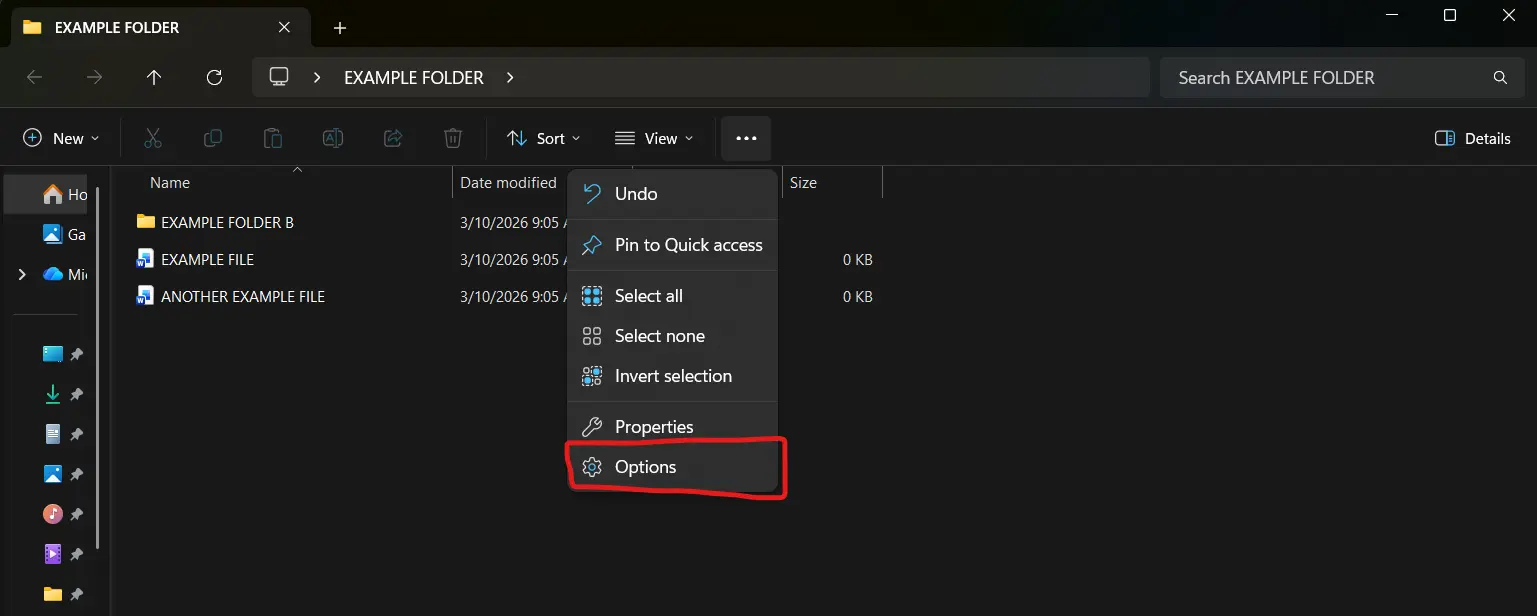
- From the drop down list, click Options
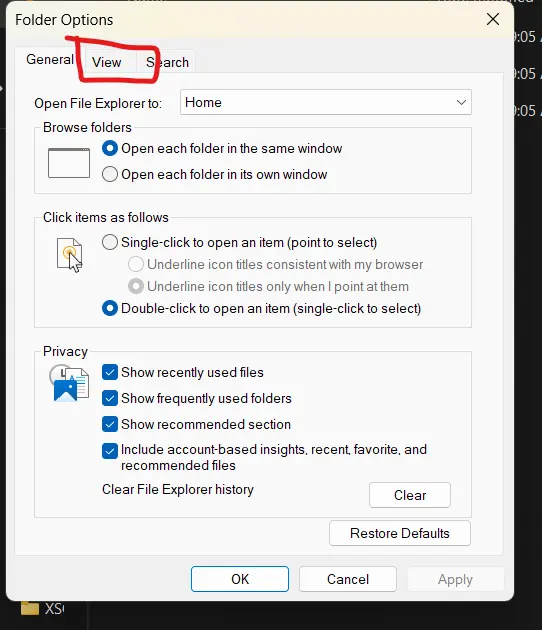
- Click the View tab
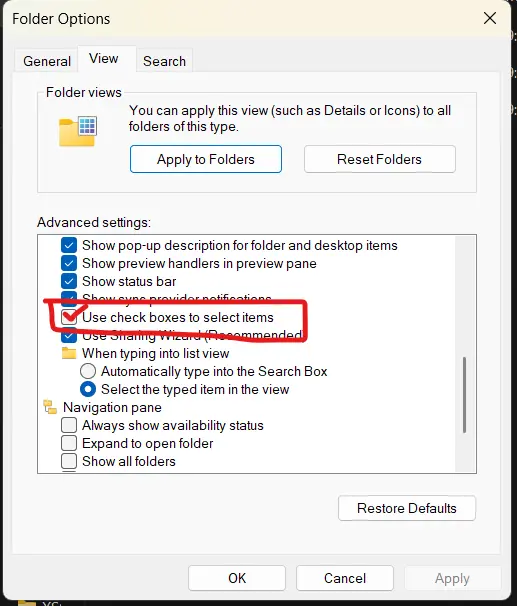
- Scroll down the list and check “Use check boxes to select items”
Click Apply, then OK
Now, when you open a folder you’ll see a check box next to the caption “Name”. If you click this, all of the files in the folder will have checks next to them. You can deselect files by clearing their corresponding check boxes. See the screenshot below.
Clicking anywhere in the blank space area within the folder clears all check marks.
This feature makes selecting multiple files much easier, especially when the files you need are scattered throughout the folder.
Want More Tech Tips?
Sign up for our weekly Tech Tip Emails! This free resource is an excellent way to learn time-saving tech know-how click here.